August 17, 2026
How to Patch Remote Computers Without Guesswork
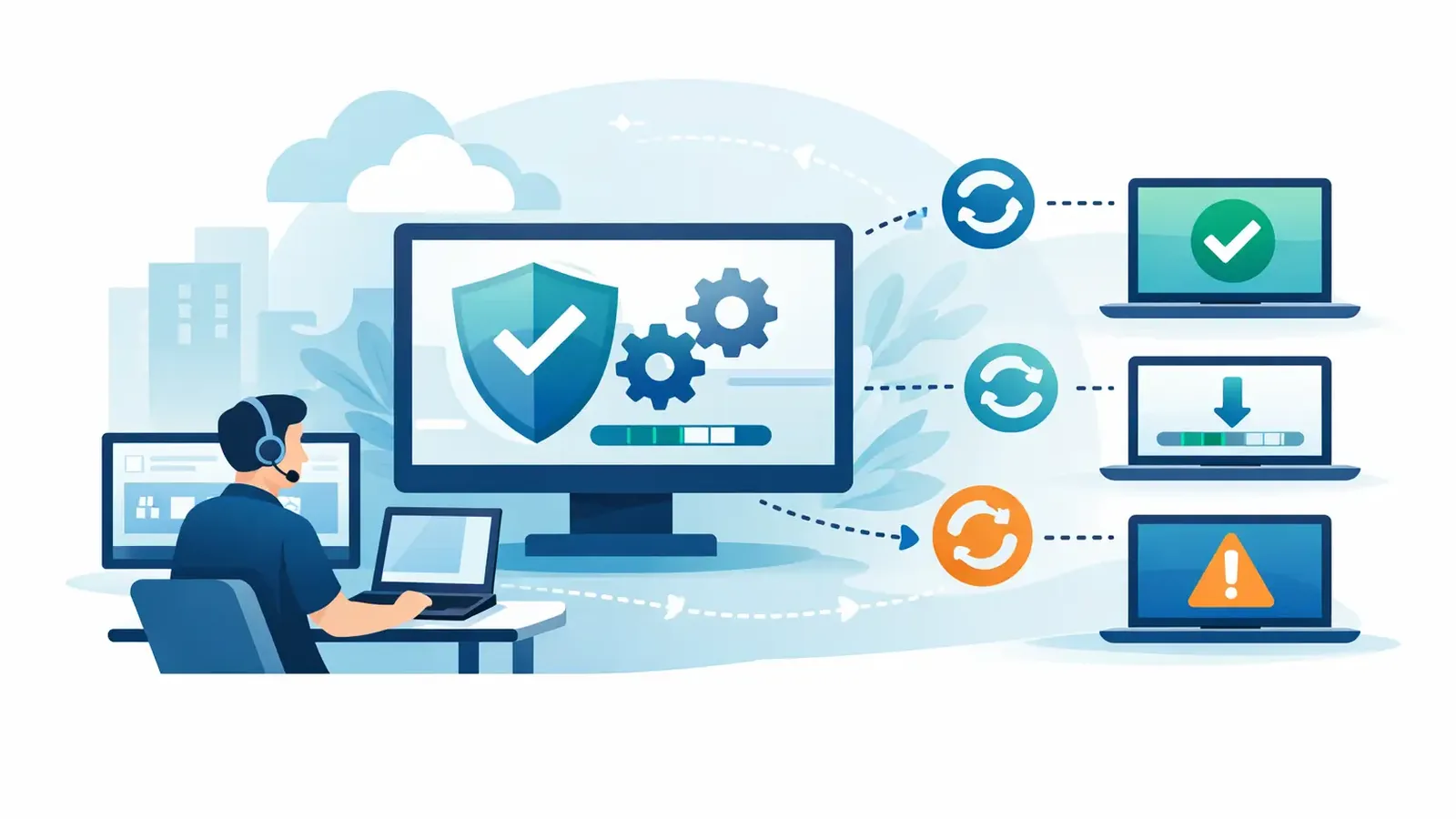
A remote employee postpones a restart because they are on deadline. Another has not connected to the office network in weeks. A third uses an application that is several versions behind because nobody wants to interrupt a working setup. That is how unpatched software quietly becomes a business risk. Knowing how to patch remote computers means building a process that reaches devices wherever they work, confirms updates actually installed, and gives someone responsibility when they do not.
Patching is not glamorous, but it closes known security gaps before an attacker can use them. For a small business, the challenge is rarely finding an update button. The challenge is applying the right updates across every laptop, at the right time, without causing unnecessary disruption or assuming employees will handle it themselves.
Why remote patching needs active management
When computers lived primarily in one office, IT could apply updates while devices were connected to the local network. Remote and hybrid work changed that. Laptops may be on home Wi-Fi, traveling with employees, or turned off outside working hours. They may also sit outside the visibility of a traditional office-based patching process.
This matters because attackers commonly target vulnerabilities that already have available fixes. They do not always need to invent a new technique when an outdated operating system, browser, VPN client, or business application offers a known path in.
Automatic updates help, but they are not a complete patching strategy. An update can fail because the device lacks storage, is not online long enough, requires a restart, or conflicts with an older application. Some updates are intentionally deferred by users. Others cover the operating system but leave common third-party applications behind.
A managed process answers the questions that automatic updates cannot: Which devices are missing critical patches? How long have they been exposed? Did a restart occur? Is a failed update being investigated and corrected?
How to patch remote computers with a clear process
A good remote patching program combines technology with practical operating rules. The goal is not to force every update onto every device the minute it becomes available. The goal is to reduce exposure quickly while protecting business operations.
Start with an accurate device inventory
You cannot patch computers you do not know exist. Create and maintain a list of every business-managed desktop and laptop, including the assigned user, operating system, location, and whether it handles sensitive data.
Include devices used by remote staff, field employees, contractors, and executives. If employees use personal computers for company work, decide whether those devices are permitted and what minimum security requirements apply. A personal device that accesses company email, files, or client information can still create risk.
Your inventory should identify computers that have not checked in recently. A device that disappears from management reporting is not necessarily retired. It may simply be offline, unmanaged, or no longer under the right controls.
Set patching priorities before an emergency happens
Not every update carries the same urgency. Critical security patches for actively exploited vulnerabilities deserve a faster response than routine feature updates. Systems exposed to the internet, devices used by administrators, and computers handling financial or client data often need the shortest patch window.
Set realistic categories. For example, critical security updates may be deployed within a few days, high-priority updates within a defined monthly cycle, and lower-risk updates during regular maintenance. Your exact schedule depends on your software, staffing, and operational tolerance.
The trade-off is real. Installing every update immediately can occasionally create compatibility problems. Waiting too long creates a larger opportunity for attackers. Staged deployment gives you a sensible middle ground.
Test updates with a small group first
Choose a pilot group that represents the systems your business uses most. It might include a few staff members from accounting, operations, and leadership, plus a test device for any specialized software.
Deploy updates to this group first and watch for issues such as application failures, printer problems, performance changes, or unexpected restart behavior. If the update works as expected, expand it to the remaining devices. If it causes trouble, pause broader deployment, document the issue, and determine whether a vendor fix or workaround is available.
Testing should not become an excuse to delay urgent security updates indefinitely. For a critical, actively exploited vulnerability, the risk of waiting may be higher than the risk of a minor compatibility issue. That decision should be deliberate and documented.
Use centralized tools that work off-network
Remote computers need a management agent or platform that communicates securely over the internet. This allows authorized administrators to see patch status, schedule deployments, trigger updates, and receive alerts without requiring an employee to visit the office or connect through a VPN.
The tool should cover more than Windows or macOS updates. Many breaches begin with vulnerable third-party software, including browsers, PDF readers, conferencing tools, remote-access software, and common utilities. Ask specifically which operating systems and applications are included in your patch coverage.
Centralized patching also makes it easier to schedule maintenance around your business. You can set updates to install after hours, allow a restart grace period, and remind users before a forced restart. For teams that work unusual schedules, the policy may need exceptions. A medical practice, law office, or service business may have different downtime needs than a standard 9-to-5 office.
Plan for restarts and employee communication
A patch that requires a restart is not fully applied until the computer restarts. This is one of the most common gaps in remote patching.
Employees should know what to expect: when updates normally run, how much warning they receive, what they need to save, and who to contact if an application will be affected. Clear communication reduces the temptation to click “remind me tomorrow” for weeks.
At the same time, avoid placing the full burden on employees. They are responsible for saving their work and responding to notices. Your patching process is responsible for tracking devices that continue to defer required restarts and escalating when needed.
Verify results instead of trusting a dashboard
A green status light is useful, but it should not be the final answer. Good patch management verifies that updates installed successfully and identifies exceptions that require action.
Review reports for failed installations, missing critical patches, devices that have not checked in, and computers that need a restart. Look for patterns. If multiple laptops cannot install the same update, the problem may be a policy setting, insufficient disk space, an application conflict, or a larger operating system issue.
A practical monthly review should answer five questions:
- Which devices are fully patched and compliant with policy?
- Which devices are missing critical or high-priority updates?
- Which failures have an assigned owner and next step?
- Which computers have not checked in recently?
- What evidence can you retain for management or cyber-insurance requirements?
This reporting is not paperwork for its own sake. It provides proof that patching is being managed, shows where risk remains, and prevents a known exception from being forgotten.
Do not confuse patching with complete endpoint security
Patching reduces attack surface, but it cannot stop every threat. A fully patched computer can still encounter phishing, stolen credentials, malicious downloads, or a new vulnerability that has no available fix yet.
That is why patch management works best alongside managed endpoint detection and response, multifactor authentication, tested backups, and employee awareness training. Each control addresses a different failure point. Patching closes known holes. Endpoint monitoring helps identify suspicious behavior that still gets through. Backups help the business recover when prevention fails.
For businesses working with an outside IT provider, these responsibilities can be shared clearly. Your IT provider may handle line-of-business applications, user support, and infrastructure. A specialized cybersecurity provider can manage endpoint monitoring and patching visibility. What matters is that no device, update failure, or security alert falls into an unclear handoff.
When remote patching needs human follow-through
The software can schedule updates. It cannot decide whether a failed patch is harmless, whether a computer is no longer in use, or whether a critical vulnerability requires immediate action. Those are operational decisions.
A managed service should provide more than a patching console. It should identify exceptions, investigate failures, communicate with the appropriate contact, and document the resolution. PC Vax approaches endpoint security this way: technology supports the work, but accountability comes from professionals who follow through.
The most useful patching process is one your team can live with. Establish a predictable maintenance schedule, make exceptions visible, and ensure someone owns the devices that fall behind. When a laptop is working from a kitchen table, a hotel, or a client site, it should still receive the same security attention as the computer at the front desk.
PC Vax provides cybersecurity services, not insurance advice. Cyber insurance requirements vary by carrier, policy, and applicant, and PC Vax does not guarantee insurance eligibility, approval, coverage, or premiums.
Professional Cybersecurity. Made Simple.